
HARDWARE × VOICE INPUT

Voice input.
Within reach.

Pick up your remote. Hold to talk. Release to finish.
Bring its microphone to your favorite input tool.

macOS 14+ · Apple Silicon / Intel · Open source

FROM BUTTON TO TEXT
+
Text field · illustration

Every idea starts
with a few words.

Ready when you are

Hold the button to preview the voice trigger.

01

One button. Your voice.

Hold the remote voice button to speak and release to finish. Configure it for hold-to-talk or tap-based input tools.

02

Make the buttons yours.

Shortcuts, app actions, and common phrases turn your remote into a useful companion.

03

Keep your favorite tool.

Connect to input methods and dictation tools for the recognition experience you already know.

HOW IT WORKS

Your remote captures audio.
Your input tool turns it into text.

①

Your remote

Microphone audio + buttons

②

Remote Buddy

Decode audio · Trigger shortcuts

③

Input method / dictation tool

Recognize speech · Enter text

Your remote sends audio over Bluetooth. Remote Buddy decodes it, routes it into a virtual microphone, and triggers the voice shortcut. Recognition, live text, and corrections come from the input tool; Buddy does not run a speech-recognition model.

APP INTERFACE

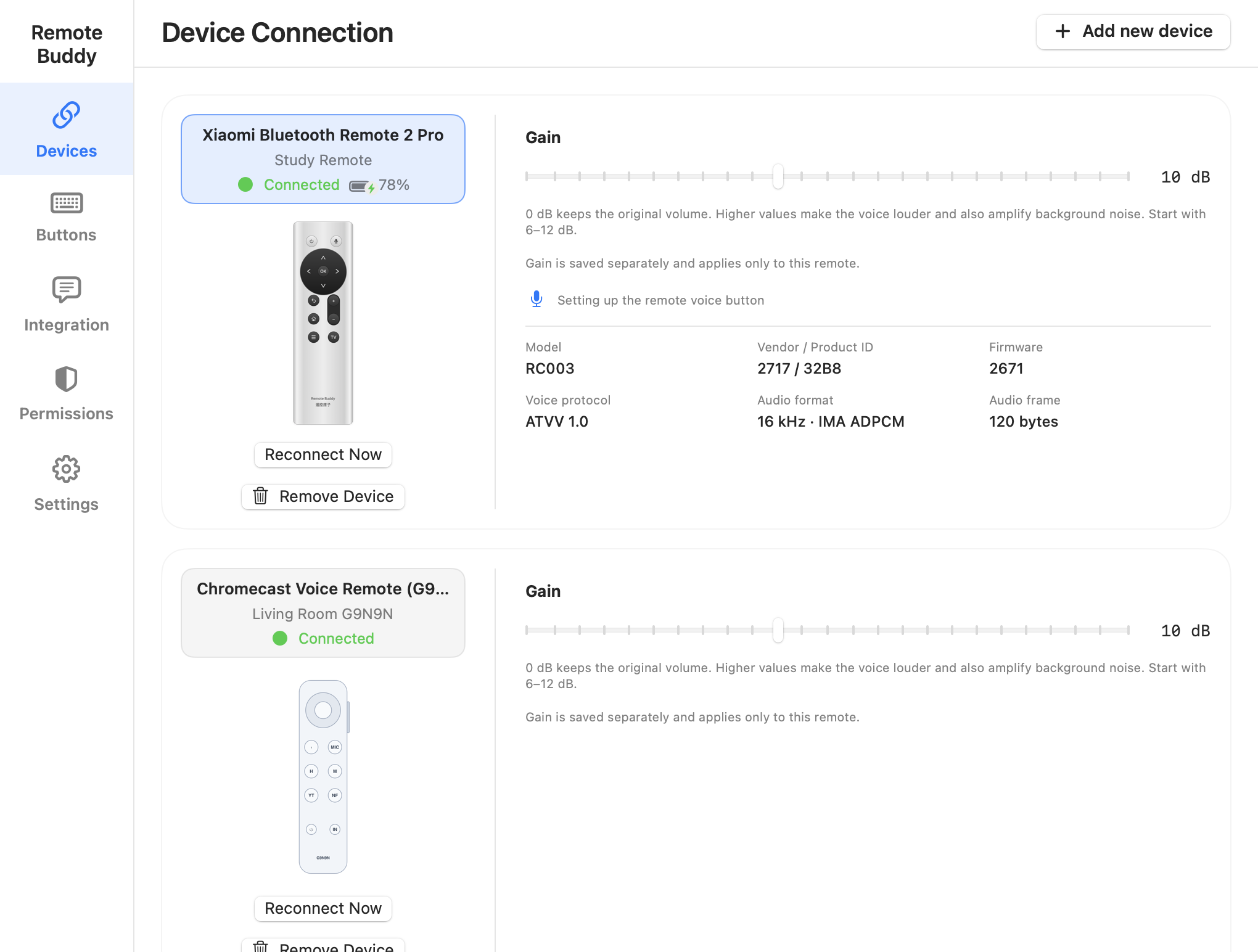
Connect devices, map buttons, and set up voice input.

Check device status, customize buttons, edit common phrases, and follow the guide to set up voice input.

WATCH IT IN ACTION

Turn your remote into a voice input button.

A cartoon overview of remote voice input, installation and permissions, input tool integration, button mapping, and common phrases.

3 min 19 sec · Mandarin audio · Chinese captions

GET STARTED

Install, then follow the setup guide.

One installer includes the app and virtual microphone driver.

Setup and troubleshooting ↗
  1. 01

    Install and open

    Download the PKG from Releases and open Remote Buddy in Applications.

  2. 02

    Grant permissions

    Follow the guide for Bluetooth, Input Monitoring, and Accessibility permissions.

  3. 03

    Connect and configure

    Connect your remote, test its buttons, and check the driver. Then select Remote Buddy Mic in your input tool and follow the guide to set its voice shortcut.

  4. 04

    Try a sentence

    Pass the voice test in the guide, then click where you want to type. Hold the remote voice button to speak and release to finish. For tap-based tools, follow the guide to configure how voice input starts and stops.

COMPATIBILITY

Check device and input tool compatibility.

REMOTES

Xiaomi Bluetooth Remote 2 / 2 ProChromecast Voice Remote (G9N9N)Google TV Streamer Voice Remote (GY3LE)Apple Siri Remote

Xiaomi 2 / 2 Pro are supported. G9N9N supports voice input; single-button mapping is unsupported. GY3LE and Siri Remote support is planned.

See support by model ↗

INPUT TOOLS

WeTypeDoubaoNetEase BageshuoTypelessVoiceCursormacOS DictationOther tools

Choose your tool, follow the guide to configure Remote Buddy Mic and the voice shortcut, then try a spoken sentence.

Your tool needs microphone selection and a configurable voice shortcut. Settings vary by version; use the guide’s voice test to check your setup.

TROUBLESHOOTING

Voice works, but buttons do not?

Check device access in Karabiner-Elements and other key remappers.

A remapper can take exclusive access to the remote, preventing Buddy from receiving its buttons. Ordinary buttons may stop performing their assigned actions while Bluetooth or voice input still works. For Xiaomi remotes, the defaults are: Home switches apps, TV plays or pauses media, Power sends Backspace, and Back sends Escape.

  1. Open Devices in Karabiner-Elements and find your remote, such as the Xiaomi Bluetooth Voice Remote.
  2. Turn off Modify events for that remote so Buddy can handle it. Keep your other keyboard settings.
  3. Reconnect the remote or restart Buddy, check its status in Button Mapping, and test the home, TV, power, and back buttons.

If Buddy still reports that another input tool owns the device, restart Karabiner-Elements and try again. Also check Buddy’s Input Monitoring and Accessibility permissions.

Karabiner’s official device settings guide ↗
Remote Buddy icon

PRIVACY & INSTALLATION

No saved recordings or text history.

Buddy does not collect usage statistics or upload logs. Check your input tool’s settings for its own network and recognition behavior.

Installation requires administrator authorization. A first install or driver change briefly restarts audio. The current PKG is unsigned and not notarized by Apple, so macOS may block installation.